How to Create a CEO Command Centre Using AI (Step-by-Step Guide and Full Prompt)
Quick answer: To create a CEO Command Centre using AI, open a fresh chat in the AI that already knows you (Claude, ChatGPT or GrokBot), paste in my CEO Command Centre prompt (it’s free, further down this page), and let it connect to your tools with read-only access: your CRM and tasks, payments, accounting, Meta and Google Analytics. Anchor it to your strategic plan and revenue goal, review version 1, then let it refresh every weekday morning with your goals, open loops, tasks in revenue-priority order, marketing, agent activity and seven-day cash outlook.
Updated November 2026.
TL;DR
- A CEO Command Centre is one interactive page your AI keeps up to date: goals, numbers, open loops, tasks, marketing, agents and cash.
- Three non-negotiables first: your AI already knows you, you have a strategic plan with a revenue goal, and your AI is connected to your tools.
- Read-only access is generally enough, except for your tasks, so your ticks sync back to your CRM.
- Your to-do list gets re-ranked by what makes you money fastest, not by due date.
- My full prompt is on this page. Copy it, paste it into your AI and follow seven simple steps.
- Then run a 10-minute morning routine and approve what’s waiting on you.
Jump to a section of the video
- 00:00 What a CEO Command Centre is and why you need one
- 00:51 Where to get my full prompt
- 01:05 Connect your tools first (CRM, Meta, Google Analytics)
- 02:00 Know your numbers: revenue goals and financial data
- 02:46 Safety first: read-only access is enough
- 03:20 Inside my real command centre (GrokBot)
- 03:53 Align it to your strategic plan
- 05:06 State of the business and agents’ open loops
- 05:42 Recently completed tasks
- 06:01 Your tasks in revenue-priority order
- 07:02 Win-back: bringing past subscribers back
- 07:38 Marketing snapshot
- 08:25 Upcoming tasks and routines
- 08:45 Agent activity in the last 24 hours
- 09:37 Efficiency: merge, pause or delete
- 10:31 Suggested new automations
- 11:28 Next 7 days: cash and risk outlook
- 12:05 Build your own with a single prompt
- 13:03 Join the Legends Lab
What is a CEO Command Centre?
Imagine opening one page every morning that tells you exactly where your business is at, what your agents have done, what’s waiting on you, and the exact order to tackle your to-do list so you hit your revenue goal faster.
No logging into ten different tools. No guessing. No “I think we’re doing okay?”
That’s your CEO Command Centre. It’s the page I have open on my screen all day, every day, and in this guide I’m going to show you how to build your own with one copy-and-paste prompt.
Here’s the thing. If you, as the CEO, don’t know what’s going on with your money, your marketing and your tasks, you’re not running your business. Your business is running you, and you’re just hoping it works. This fixes that.
This guide is for you if…
- You already use Claude, ChatGPT or GrokBot, and it already knows you, your business and your goals (especially if you’ve done my Claude or GrokBot Masterclass inside the Legends Lab).
- You use Tekmatix as your CRM, or another CRM. It still works.
- You want your AI to tell you what to do next, not just answer questions.
By the end, you’ll have
- One interactive dashboard that refreshes itself every weekday morning.
- Your to-do list re-ordered by what makes you money fastest, not by due date.
- Tick boxes that mark tasks complete inside your CRM automatically.
- Every approval your agents are waiting on, in one place.
- Your revenue, leads, marketing, win-backs and seven-day cash outlook at a glance.
- A daily report on what your AI agents did and how many human hours they saved you.
Before you start: the 3 non-negotiables
1. Your AI already needs to know you
The prompt starts with “Taking everything you know about me…”. That’s deliberate. Your AI should already know your businesses, your offers, your customers and your team. If you’ve been using it for a while (or you’ve loaded your company dossier into it), you’re good to go. If it’s brand new to you, spend 10 minutes telling it about your business first.
2. You need a strategic plan with a revenue goal
If you don’t know where you’re going, you’re going to end up nowhere. Your Command Centre ranks everything against your goals: who you sell to, what you sell, what it costs, the revenue you want to hit and the lifestyle you want. No goal means your AI has nothing to prioritise against.
Don’t have one yet? Inside the Legends Lab there’s a mini workshop with prompts that gets your AI to build your strategic plan with you. You can also read how to create a strategic plan using AI. Do that first. It’s worth it.
3. Your AI has to be connected to your tools
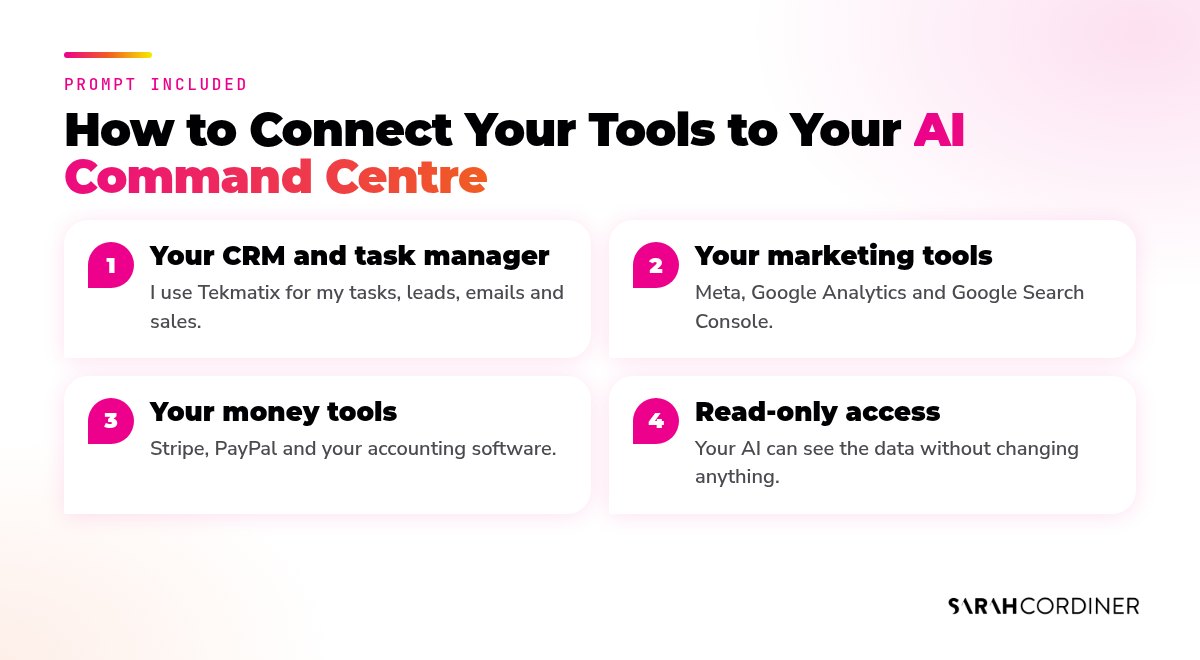
Your Command Centre is only as good as the data feeding it. If you want it to track your marketing, it needs to be connected to your marketing tools. If you want it to track your money, it needs your payment and accounting tools. The prompt tells your AI to help you connect anything that’s missing, step by step, so you don’t need to know how.
What’s inside your CEO Command Centre
Here’s every section the prompt builds, what it shows you and the decision it helps you make. These are the exact sections in my own Command Centre.
| Section | What it shows you | The decision it drives |
|---|---|---|
| 1. My goals | Your revenue and subscriber goals for each business, where you are now and your % progress | “Am I on track or behind?” |
| 2. Current state of business | Revenue, recurring revenue, paying customers, new customers, churn and unconverted leads | “Do I need a sales push or a retention push this week?” |
| 3. Open loops with my agents | Everything your agents are waiting on you to approve, log into or decide, with a suggested answer | “What can I approve right now to unblock everything?” |
| 4. Recently completed | Tasks finished in your CRM and work your agents completed, plus anything that is now unlocked | “That’s done. What’s next?” |
| 5. My task list (revenue priority) | Every open task, re-ranked by what hits your revenue goal fastest, with tick boxes that sync to your CRM | “What do I do myself, and what do I hand to my AI?” |
| 6. Win-back | Past customers, how your win-back campaign is going, and who to invite back this week | “Who can I get back without finding new customers?” |
| 7. Marketing snapshot | What you published, who it reached, what converted, ad spend and ROI, top and bottom performers | “What do I do more of, and what do I stop?” |
| 8. Upcoming tasks and routines | Every scheduled agent task and automation for the next 7 days | “Do I still want all of these running?” |
| 9. Agent activity (24 hours) | What each agent did, its share of the work, the human hours it equated to and the wages saved | “Which agents are earning their keep?” |
| 10. Efficiency report | Duplicate or overlapping tasks to merge, pause or delete, with the % credit saving | “Do I approve these changes to cut my AI costs?” |
| 11. Suggested new automations | Repeated manual jobs your AI could take over with a new skill or agent | “What do I hand over next?” |
| 12. Next 7 days outlook | Expected income, income at risk, overdue invoices, bills due and likely cash position | “Is there a cash gap coming, and what do I do about it?” |
| 13. Not yet connected | Any tool that failed to load, why, and how to fix it | “Do I need to reconnect anything?” |
| 14. Last refreshed | When the numbers were last updated | “Can I trust what I’m looking at?” |
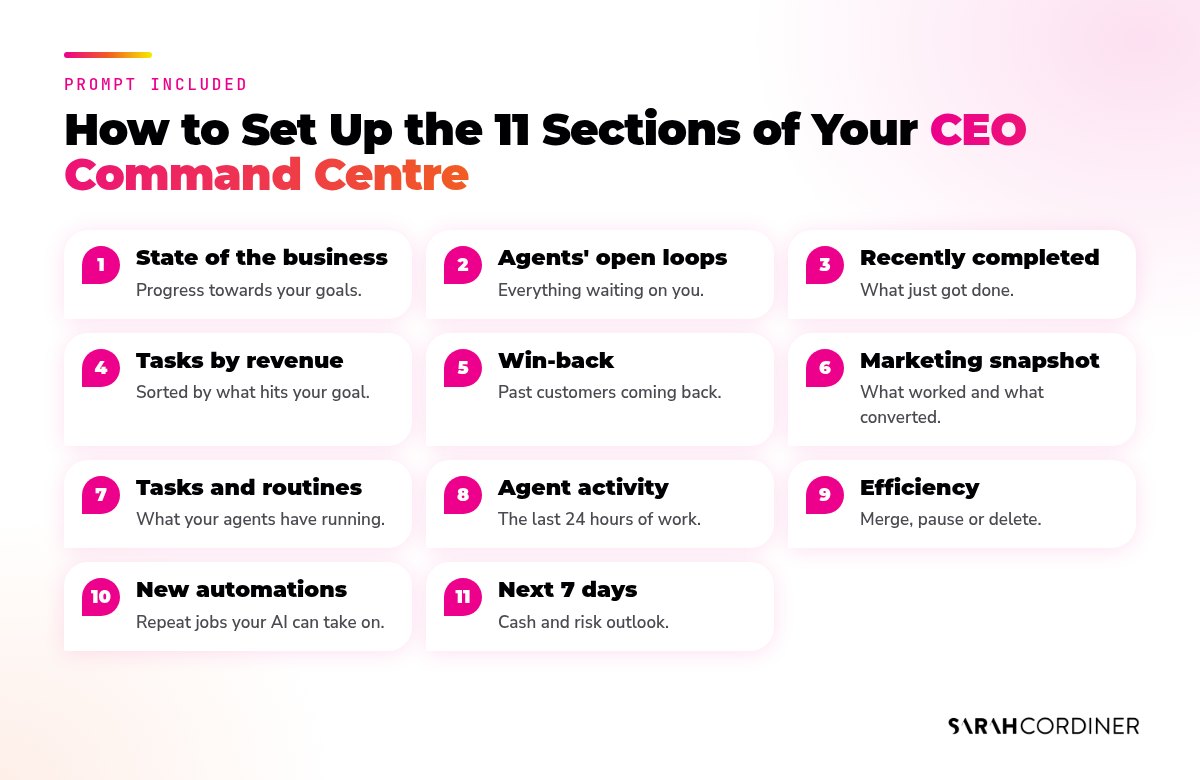
A few sections worth a closer look
Open loops. When you have loads of chat threads and agents running, things get missed. This section catches every job sitting there waiting for your human attention, so you can just say “approve, approve, approve, but change this” and move on.
Your task list. This is the magic bit. Regardless of the due date on the task, your AI re-orders everything by what gets you to your revenue goal fastest. Making money and reaching people comes first, then everything operational in the right order behind it. And when you tick a task off in your Command Centre, it’s marked complete inside your CRM too. I use Tekmatix for all of my tasks, mine and my team’s.
Win-back. Most people leave a subscription because it’s not the right time, they’re short on money right now, or their focus has shifted. Not because you did a bad job. Inviting them back is one of the easiest ways to grow without finding brand new customers.
Agent activity. This shows what each of my agents did, which ones are doing the most work, and roughly how many human hours that work would have taken. Seeing that every day keeps you honest about what your AI is actually worth to you.
Efficiency report. Once you have lots of tasks running (I have well over a hundred), some start doubling up and you burn more credits than you need to. This section tells you what to merge, pause or delete. You just copy it, go to your agent and say “I approve all of the suggested changes”. Done.
What to connect (and what access to give)
Your AI will walk you through each of these. You only need the ones you actually use. Start with your CRM and your payment platform, then add the rest.
| Tool | What it feeds | Access to give |
|---|---|---|
| Tekmatix (or your CRM) | Tasks (yours and your team’s), contacts, leads, pipelines, email stats, social planner, blogs, invoices, payments | Read, plus write for tasks only (so ticks sync) |
| Stripe and PayPal | Subscribers, revenue, cancellations, failed payments | Read-only |
| Xero, MYOB or QuickBooks | Cash position, bills due, overdue invoices | Read-only |
| Meta Business | Facebook and Instagram reach, ad spend, leads, cost per lead | Read-only |
| Google Analytics and Search Console | Website traffic, blog performance, search impressions and clicks | Read-only |
| Email, calendar and Google Drive | Open loops, upcoming commitments, your strategic plan and documents | Read-only |
Tekmatix users: the prompt tells your AI to connect to your Tekmatix account via the MCP and to log in as you to do the work. If it needs a Private Integration token or an MCP connection set up, it shows you exactly where to create it in your Tekmatix settings and which permissions to tick. You just follow along.
A quick, honest word on permissions
I’m not a cybersecurity professional or a lawyer, so this isn’t security advice. Only you can decide what level of access you’re comfortable giving your AI.
Generally speaking, though, read-only access is perfectly enough for everything except your tasks. Read-only means your AI can see the data to report on it, but it can’t go and do things with it. The prompt also tells your AI to never send, publish, delete, refund or spend anything without your explicit approval.
Tip: Never paste a password into the chat. The prompt tells your AI not to ask for one. For more on this, read how to use AI agents safely in your business.
Step 1: Open a fresh chat in the AI that knows you best
Use whichever AI you use most (Claude, ChatGPT or GrokBot), because that’s the one that knows you, your businesses and your goals. If you use Claude Projects or ChatGPT Projects, open it inside the project where your business info lives.
Step 2: Copy and paste the prompt
Press Copy the prompt on the pink box below (it copies everything from “Taking everything you know about me” to the end) and paste it in. There’s nothing to fill in. Your AI already knows your details, and it will only ask you for anything it genuinely can’t find.
Step 3: Read the recap
Before it builds anything, your AI gives you a short recap: what it knows about your goals, which tools it’s already connected to, and which ones it needs you to connect. Correct anything it has got wrong.
Step 4: Connect your connectors, one at a time
Your AI walks you through each missing connector, click by click. You’re basically just going to approve, log in or sign in, then type “done”. It runs a quick test after each one to prove it works, like showing you your five newest tasks.
If something won’t connect, don’t get stuck. It goes in the “Not yet connected” section and you can come back to it later.
Step 5: Review version 1 and tweak it
Your AI builds the first version and shows it to you. If something isn’t right, just tell it in plain English: “Move marketing up higher”, “Make the task column wider”, “Show my team’s tasks too”. You don’t need to know how to prompt it. Just say what you want.
Step 6: Check your numbers for the first week
For the first few days, compare a few numbers against your own systems: your paying subscribers in Stripe, your open tasks in your CRM, your ad spend in Meta. If they don’t match, see the troubleshooting section below. Once they match, you can trust it.
Step 7: Let it run
The prompt asks your AI to schedule a refresh every weekday at 6am and send you a short morning message with the link and only the two or three things that need you. If your AI can’t schedule tasks on your plan, it gives you a one-line prompt to type each morning instead.
When it suggests changes or new automations, I just say “Yes, do it.” It might need me to log in to a piece of software or give my okay on a particular action. Then it implements the changes and delegates them to whichever AI agent needs to do that job.
The CEO Command Centre prompt
Copy everything inside the pink box and paste it straight into your AI. It’s long on purpose. It does the thinking so you don’t have to.
Copy this prompt: CEO Command Centre
Taking everything you know about me, my businesses, my offers, my customers, my team, my strategic plan and my goals, I want you to build me my own interactive CEO Command Centre. This is the one page I open every morning and keep up on my screen all day, so I know exactly what is happening in my business and exactly what needs to happen next to hit my goals.
You already know me, so please do not ask me questions you already know the answers to. Use what you know. Only ask me for anything you genuinely cannot find, and ask it all in one short list rather than one question at a time.
STEP 1: CONNECT TO MY TOOLS FIRST
This only works if you are connected to the tools that hold my real data, so start here.
- Connect to my Tekmatix account and log in to it as me to do the work, and via the MCP. Tekmatix is my CRM. It holds my tasks (mine and my team's), contacts, leads, pipelines and opportunities, email campaign stats, social media planner, blog posts, forms, invoices, payments and subscriptions. Use the Tekmatix MCP connection for the data, and if there is anything the MCP cannot reach, log in through my browser as me to get it. If I have more than one Tekmatix account or sub-account, connect to all of them and confirm with me which business each one belongs to.
- Also connect to the other tools I use that feed this dashboard, such as my payment platforms (Stripe, PayPal), my accounting software (Xero, MYOB or QuickBooks), Meta Business (Facebook and Instagram pages and ads), Google Analytics, Google Search Console, my email inbox, my calendar, my Google Drive and anything else you know I use. Skip any I do not use.
- If I need to connect any connectors, please help me connect them because I don't know how. Walk me through it one connector at a time, click by click, in plain English. Tell me exactly where to click, what to approve and what to type. Wait for me to say "done", then run a quick test to prove it is working (for example, show me my five newest Tekmatix tasks) before moving on to the next one.
- For Tekmatix, if you need a Private Integration token or an MCP connection set up, show me exactly where to create it in my Tekmatix settings, which permissions to tick, and how to add it to you.
- Ask for read-only access everywhere you can. The only write access you need is to my Tekmatix tasks, so that when I tick a task off in my Command Centre, it is marked complete in Tekmatix.
- Never ask me to paste a password into this chat.
- If something will not connect, do not get stuck. Add it to the "Not yet connected" section, tell me why, and keep going.
STEP 2: ANCHOR EVERYTHING TO MY STRATEGIC PLAN
- Find my strategic plan (in our past chats, your memory, my project files or my Google Drive). Pull out the revenue goal and the subscriber or customer goal for each of my businesses, plus my offers and price points.
- Work backwards from those goals: how many sales I need, how many leads that takes, and how many people I need to get in front of with my marketing to have a real shot at hitting them.
- If you cannot find a strategic plan, tell me, ask me only for my revenue goal, my main offers and prices, and my deadline, and recommend that I create a proper strategic plan next.
- Everything in my Command Centre must be prioritised by what moves me fastest towards those goals.
STEP 3: BUILD MY COMMAND CENTRE WITH THESE SECTIONS, IN THIS ORDER
1. My goals. A banner at the top showing each business's revenue goal and subscriber or customer goal, where I am now, the percentage progress, and whether I am on track or behind.
2. Current state of business. My core numbers for each business: revenue this month against target, monthly recurring revenue, active paying customers or subscribers, new customers, cancellations and churn over the last 30 days, and leads I have not yet converted, with pipeline value. Count unique paying customers, not subscriptions, excluding trials, paused, past due and duplicates, and label that counting rule under the numbers.
3. Open loops with my agents. Anything any of my AI agents, routines or chat threads is waiting on me for (approvals, logins, decisions, unanswered questions) that I may have missed. Group it by agent, one line each, with what it needs from me and your recommended answer, so I can simply reply "approve, approve, approve, but change this".
4. Recently completed. Tasks completed in Tekmatix in the last 7 days, and work my agents finished in the last 24 hours, plus any follow-up job that is now unlocked because that task is done.
5. My task list, in revenue priority order. Pull every open task assigned to me from Tekmatix (and any other task manager I use). Do not rank by due date. Re-rank them by what gets me to my revenue and marketing goals fastest: cash coming in first, then making sales, then marketing reach and lead generation, then retention, then operations. Number every task. Each row shows: the task (linked straight to it in Tekmatix), which business it is for, why it matters, progress so far, and how AI could do it or help ("I can draft this for your approval", "needs your decision", "needs your login", "only you can do this"). Put my team's tasks in a separate, collapsed "Team tasks" list so I can see them without them cluttering mine. Every one of my tasks has a tick box. When I tick it, mark it complete in Tekmatix straight away and confirm it worked.
6. Win-back. Past customers and cancelled subscribers: who has left recently, how my win-back campaign is performing (emails sent, opens, replies, people who came back, revenue recovered), and who I should invite back this week.
7. Marketing snapshot. From Meta, Google Analytics, Google Search Console and my Tekmatix social planner, blog posts and email campaigns: what we published, how many people we reached, how many leads and sales it produced, ad spend, cost per lead and return on ad spend, my top 3 and bottom 3 performers, and what I should do more of and less of. Compare it against the reach numbers I need from Step 2.
8. Upcoming tasks and routines. Every scheduled task, routine and automation my AI agents will run in the next 7 days: what it is, when it runs and which agent owns it. Flag any I may no longer need.
9. Agent activity (last 24 hours). For each agent: what it worked on, what it finished, its share of the total work as a percentage (in a simple chart), the estimated human hours that work would have taken, and the wages it saved me at $45 an hour (or my real rate if you know it). Show the total saved today. Label the hours as estimates and explain how you worked them out.
10. Efficiency report. Review all of my agents' tasks, routines and credit or token usage. Find duplicates, overlaps and waste, and recommend what to merge, pause or delete, with the reason and the estimated percentage saving for each. Write it so I can simply reply "I approve all of the suggested changes".
11. Suggested new automations. Look for jobs that I or my team keep doing by hand, or keep prompting you to do manually. Recommend the new skills, agents or automations that would take them over, which agent should own each one, and the time it would save each week. Write it so I can simply reply "Yes, build them all".
12. Next 7 days outlook. Expected income (renewals, payment plans, booked sales), income at risk (failed payments, likely cancellations, overdue invoices), bills and expenses due, my likely cash position and what I can do about any gap.
13. Not yet connected. Any data source that failed to load, why, and how to fix it.
14. Last refreshed. The date and time, in my time zone.
STEP 4: RULES YOU MUST ALWAYS FOLLOW
- Never make up numbers. If you cannot get a figure, leave it blank, say so and list the source under "Not yet connected". Anything that is an estimate must be labelled as an estimate.
- Use the same counting rules every day so I can compare the numbers fairly from one day to the next.
- Keep it easy to scan: short headings, tables, short lines, green for on track, amber for watch and red for action needed. Put links on words, never as raw web addresses. Use my brand colours.
- Refreshing the Command Centre is read-only. Never send, publish, delete, refund, pay or spend anything without my explicit approval. The only exception is marking a task complete in Tekmatix when I tick it off.
- Keep my costs lean: one refresh per morning, and only pull the data each section actually needs.
STEP 5: MAKE IT INTERACTIVE AND KEEP IT UP TO DATE
- Build it as an interactive page I can keep open all day (an artifact, canvas, dashboard or web page, whatever works best on your platform), with working tick boxes that write back to Tekmatix.
- If your platform cannot let a page write back to Tekmatix, tell me honestly, and set it up so I can type "done 3, 7" in our chat and you will mark those exact tasks complete in Tekmatix, confirm them back to me by name and update the page. If a task number is unclear, ask me before completing anything.
- When I type "hand over" and a task number (for example "hand over 12"), brief the right agent to take that task on and tell me what it will do.
- Schedule an automatic refresh every weekday at 6am in my time zone, before I start work, then send me a short morning message (wherever you know I prefer to get them) with the link and only the 2 to 3 things that genuinely need me today. If your platform cannot schedule tasks, tell me, and give me a one-line prompt I can type each morning instead.
- Save this whole setup as a reusable skill, project or set of instructions, so my Command Centre is built the same way every single time.
STEP 6: LET'S GO
Before you build anything, give me a short recap: what you know about my goals and businesses, which of my tools you are already connected to, which ones you need me to connect, and anything you could not find. Then start helping me connect the first missing connector. Once everything is connected, build version 1, show it to me and ask what I would like to change.
Your 10-minute morning routine
- Check your goals banner (1 minute). On track or behind?
- Clear your open loops (3 minutes). Approve, approve, approve, change this. Done.
- Check your seven-day outlook (1 minute). Deal with any cash fire first.
- Start at task number 1 and work down. Hand anything your AI can do back to your AI.
- Tick off what you finish. It syncs straight to your CRM.
Once a week, look at the agent activity, the efficiency report and the suggested new automations, and approve the changes.
The magic phrases (copy these)
You really don’t need to know how to prompt this thing. Here’s all you need:
| Type this | What happens |
|---|---|
| Refresh my CEO Command Centre | Pulls fresh data and rebuilds your dashboard |
| done 3, 7 | Marks tasks 3 and 7 complete in your CRM and updates the page (handy if your tick boxes can’t write back on your platform) |
| hand over 12 | Briefs the right agent to take task 12 off your plate |
| I approve all of the suggested changes | Actions the efficiency report (merge, pause or delete) |
| Yes, build them all | Sets up the suggested new automations |
| Approve 1, 2 and 4, but change 3 to… | Clears your open loops in one go |
Troubleshooting
“A connector stopped working.” Connections to tools like Google, Meta and Stripe expire from time to time, especially after a password change. It shows up under “Not yet connected”. Just say “Help me reconnect [tool]” and follow the steps.
“My subscriber numbers don’t match Stripe.” This is almost always the counting rule. Stripe can count the same person twice (two subscriptions, a trial, an old card). Your Command Centre counts unique paying customers. Ask your AI: “Show me which customers you counted differently from Stripe and why.”
“My tick boxes don’t update my CRM.” Some AI platforms can’t let a page write back to your CRM yet. Type “done 3, 7” in the chat instead and your AI marks them complete for you. Same result.
“The morning refresh didn’t run.” Check the scheduled task is still switched on, that it’s set to your time zone, and that your AI plan includes scheduled tasks.
“My task list is in a weird order.” Remind your AI of your revenue goal and tell it what’s wrong: “Task 12 is a sales task, it should be higher.”
“A number is blank.” Good. That means it’s working properly. Your AI couldn’t get the data, so it left it blank instead of guessing. Reconnect the source rather than asking your AI to estimate it.
I run my business on Tekmatix
My tasks, my team’s tasks, contacts, pipelines, emails, social scheduling and payments are all in one place, ready for my AI to connect to.
Let your AI work towards your goals
This is how I now get my AI to work for me: doing my jobs and, importantly, moving me towards my targets, my marketing numbers and my sales numbers far more efficiently than I’ve ever been able to before.
If you’d like to see the kind of work my agents do each day, read 20 human jobs that AI did for me this week, learn how to build an AI team for your business, or keep your prompts organised with an AI skills library.
Have fun, enjoy the process, and as always, happy teching!
Sarah x
Frequently asked questions
What is a CEO Command Centre?
A CEO Command Centre is one interactive page, built and refreshed by your AI, that shows you everything happening in your business: your goals and progress, your core numbers, what your AI agents are waiting on, your to-do list in revenue-priority order, win-backs, your marketing results, agent activity, efficiency suggestions and your cash outlook for the next seven days. You open it every morning so you know exactly what to do next.
Can I build a CEO Command Centre in ChatGPT, Claude, GrokBot or Gemini?
Yes. I show mine in GrokBot, and I have the same command centre in Claude. The prompt on this page works in Claude, ChatGPT and GrokBot. Gemini has fewer connectors, but it can still give you a useful version.
Where do I get Sarah’s CEO Command Centre prompt?
It’s right here on this page, in the pink prompt box. Press Copy the prompt, paste it into a fresh chat in the AI that knows you best, and follow the steps above. There’s nothing to fill in.
What tools should I connect to my command centre?
Start with your CRM and task manager (I use Tekmatix) and your payment platform, such as Stripe or PayPal. Then add your accounting software, Meta Business, Google Analytics and Search Console, and your email, calendar and Google Drive. You only need the tools you actually use.
Is it safe to connect my business accounts to AI?
Only you can decide what level of access you give your AI, and this isn’t cybersecurity or legal advice. Generally speaking, read-only access is enough for everything except your tasks, which need write access so your ticks sync. The prompt also tells your AI never to send, publish, delete, refund or spend anything without your explicit approval.
Do I need to know how to prompt to build one?
No. Copy and paste the prompt, read the recap, then approve, log in or sign in to each connector as your AI walks you through it. After that, just tell it what you want changed in plain English.
How does the command centre prioritise my tasks?
It ignores due dates and re-ranks every open task by what gets you to your revenue and marketing goals fastest: cash coming in first, then sales, then marketing reach and lead generation, then retention, then operations. That’s why it needs your strategic plan and revenue goal.
Why don’t my subscriber numbers match Stripe?
It’s almost always the counting rule. Stripe can count the same person more than once (two subscriptions, a trial or an old card). Your command centre counts unique paying customers. Ask your AI to show you which customers it counted differently and why.
How often does my CEO Command Centre refresh?
The prompt asks your AI to refresh it every weekday at 6am in your time zone and send you a short morning message with the two or three things that genuinely need you. If your plan can’t schedule tasks, it gives you a one-line prompt to type each morning instead.
Want my exact Command Centre, plus the skills and agents behind it?
This guide gets you up and running. If you want to learn how to use AI properly to hit your goals faster and easier, come and join me inside the Legends Lab, my business education program. Inside you get my Claude Masterclass and GrokBot Masterclass, well over 100 of my skills and agent prompts ready to copy and paste into your AI, the strategic plan mini workshop and my revenue calculators, plus live training, Q&A and support from me.
This article is general education, not cybersecurity, legal or financial advice. Only you can decide what access to give your AI, so check what fits your situation.
Sarah Cordiner is a business and AI educator. She has more than 20 years in business, has taught more than 280,000 students in 181 countries, and has been sharing business education online since around 2011.
How Sarah Cordiner Can Help You Scale Your Business with Tech, AI, and Automation
Tech doesn't have to be hard or scary. I help you make it easy to learn, fun to implement, and even better to see the amazing results that you can get with some simple tech tools and strategy.
Here are all of the different ways that I can help you scale your business, streamline your operations, and make your bottom line full of joy using tech, AI, and automation (as well as traditional methods) as your secret weapon.
One platform. Your whole business. Finally talking to each other.
"What tech do you use, Sarah?" I get asked this every single week. The honest answer? Almost all of it lives in one place: Tekmatix. It's the all-in-one AI business platform I founded, and it runs my websites, funnels, courses, emails, bookings, payments and AI agents. Here's everything it does, who it's for, and the handful of other tools I love.
No lock-in contracts / Cancel anytime / Australian owned and female owned
I run my business on it.
- 5.0 on Google from 100+ reviews
- 98% recommended on Facebook
- 1,000+ businesses in 30+ countries
- Award-winning 24/7 support
- 3 free live training calls every weekday
- Replace $500 to $1,000+ a month in subscriptions
Eight logins. Eight bills. Zero of them talking.
Most business owners I meet are paying for a website here, an email tool there, a booking app, a course platform, a CRM they never open... and then paying someone to glue it all together with duct tape and Zapier.
- 1Leads fall through the cracks because your forms, inbox and CRM live in different places.
- 2Every new tool means another login, another bill and another thing to learn.
- 3You can't see what's actually working because your data is scattered across ten dashboards.
Everything your business runs on, under one roof.
Tekmatix is an all-in-one CRM, marketing, sales, course and AI platform. Here's what's inside, grouped by the job it does for you. Tap a category to filter, or scroll the lot.
AI that does the work
Hand the repetitive stuff to AI that already knows your contacts, calendar and offers.
- AI Employees that answer chats, DMs and enquiries 24/7
- Voice AI receptionist that answers your phone and books calls
- AI booking bot on your website chat widget
- AI Studio to build apps and tools by describing them (vibe coding)
- Ask AI assistant built into your account
- AI website and funnel builder plus content and image AI
- Connects to Claude and ChatGPT via MCP, so your AI can work inside Tekmatix
Get found and grow your list
Everything you need to get seen, capture leads and build your audience.
- Unlimited websites with free hosting and your own domains
- Unlimited funnels, landing pages, sales pages and opt-ins
- 100+ ready-made templates for sites and funnels
- Blogging with unlimited posts
- Social media planner with auto-posting
- Forms and quizzes, unlimited
- Surveys with conditional logicPro
- Reviews and reputation management, incl. Google Business Profile
- Link-in-bio pages and QR codes
Nurture and convert
Turn strangers into clients with automated follow-up that never forgets.
- CRM with unlimited contacts and full client records
- Unified inbox for email, SMS, Facebook and Instagram DMs
- Email marketing with automated newsletters
- SMS and phone, incl. missed-call text back
- Unlimited workflows and automations
- Sales pipelines so you see every deal
- Booking calendars for individuals, teams and groups, with 2-way sync
- Advanced reporting on ads, calls, courses and lead sourcesPro
Sell and get paid
Take money online, in person and on autopilot. Payments go straight to your Stripe or PayPal.
- Checkouts with upsells and order bumps
- Invoicing: one-off, recurring and payment plans
- Tap to pay on your phone (EFTPOS)
- Request payments by SMS
- Products and e-commerce, digital and physical, plus coupons
- Proposals, quotes and contracts with e-signaturesPro
- Affiliate program with unlimited affiliatesPro
- Event management with QR code ticketingPro
Courses, memberships and community
Built especially for course creators, educators and coaches. (It's where I teach my own students.)
- Unlimited courses and memberships
- Unlimited students and video hosting
- Assessments and quizzes inside your courses
- Student mobile app in your branding
- Communities and groups, unlimitedPro
- Course certificatesPro
Run the business
The behind-the-scenes admin, organised and in one place for your whole team.
- Project management and Kanban boards
- Task manager with deadlines and tracking
- Unlimited staff users with permission controls
- Admin mobile app for Apple and Android
- Business card scanner
- Integrations with Zapier, Make, WordPress, Google and more
- Up to 5 sub-accounts for your other businessesMax
Want to see it with your own eyes?
Start a 7-day free trial and a Tekspert will jump on a free set-up call with you.
If you sell your expertise or your services, it's built for you.
Solo operators, growing teams and multi-business owners all run on Tekmatix. Here's where it shines brightest.
Coaches, course creators and educators
Your website, sales pages, checkout, courses, membership, community and email, all connected. Tekmatix was made especially for you.
Consultants, speakers and experts
Bookings, proposals, contracts, invoices and follow-up that makes you look like a big firm, even if it's just you.
Health, allied health and NDIS providers
Online bookings, reminders, reviews and client records for clinics, therapists and practitioners.
Tradies and local service businesses
Missed-call text back, quotes, tap to pay and review requests, so you win the job while you're still on the tools.
Studios, salons and personal trainers
Class bookings, memberships, payments and reminders that cut the no-shows and the admin.
Agencies, associations and multi-business owners
Pipelines, staff permissions, reporting and (on Max) up to 5 sub-accounts to run several brands from one login.
Honest moment: if you only need one simple tool and you're genuinely happy juggling logins, you probably don't need Tekmatix yet. But the minute you're copying leads from one app to another, or paying for five subscriptions that don't talk to each other, it's time.
Most software gives you a login. We give you a team.
I'm an educator first, so Tekmatix was built education-first. Every plan comes with real humans, real training and real templates to get you up and running fast.
Free one-on-one set-up call
A Tekspert jumps on a call with you to set up your account and connect your integrations.
Award-winning live chat
Stuck at 11pm? Real support, any time of day or night.
3 free live training calls
Drop in, share your screen and get your questions answered live.
Starter kit and training library
Ready-made templates and automations, a step-by-step help centre, video tutorials and a free Tekmatix training course.
Rather someone just did it for you?
Teksperts are available by the hour, plus fixed-price done-for-you set-up and migration from your old platforms.
Simple pricing that doesn't punish growth.
Unlimited contacts on Starter and Pro, so your bill doesn't jump every time your list grows. Pay in AUD or USD, monthly or yearly (pay yearly and get a month free).
Everything you need to market, sell and deliver, in one place.
- Unlimited contacts, staff users and courses
- Websites, funnels, CRM, email and bookings
- Payments, invoicing and tap to pay
- AI Agents, AI booking bot, AI Studio and Ask AI
- 24/7 live chat and a free set-up call
Everything in Starter, plus the tools to build a community and scale.
- Communities, groups and course certificates
- Event management with QR ticketing
- Your own affiliate program
- Proposals, contracts and e-signatures
- Unlimited surveys and advanced reporting
Everything in Pro, plus more AI, more accounts and a strategist in your corner.
- Up to 5 sub-accounts
- AI Employee Growth plan included: 1,000 AI conversation replies and 100 voice AI minutes a month
- Monthly 60-minute strategy call with a senior Tekspert
- Early access to Tekmatix Labs
Just starting out? The Launch plan is $75 AUD ($50 USD) a month for up to 1,000 contacts. No lock-in contracts.
Explore the Launch planEmails, SMS, phone calls and AI usage are pay-as-you-go and billed in USD, so you only pay for what you use. See the full rates at tekmatix.com/rebilling. Prices current as at September 2026. Always check tekmatix.com/pricing for the latest.

I didn't set out to start a software company. I started the toolbox I needed.
After 20+ years in business and more than 280,000 students, I kept seeing the same thing. Brilliant people with brilliant expertise, drowning in tech. Paying for ten tools, using two of them, and spending their evenings on YouTube trying to make them talk to each other.
So I put everything a business needs into one platform, then wrapped it in the thing I know best: education and support. Tekmatix runs my own websites, courses, funnels, emails and AI agents every single day. I wouldn't recommend it if I didn't use it.
Sarah x
Want me to teach you how to get the most out of it?
Inside the Legends Lab I show you step by step how to use tech, AI and automation to grow your business, with live calls, workshops and templates you can copy.
Non-techie people love their tech again.
Tech is hard for non-techie people, and they really get that and make it fun.
Yesterday I felt overwhelmed. Now I feel excited and empowered.
I have used a number of top CRM systems. This is up there with the very best.
Solved problems I have had for weeks, in 50 minutes. Wonderful.
The other tools I use and actually recommend.
Tekmatix is the engine. These are the extras that plug in around it for AI, video, design, content and admin. Tap a category to filter.
Some of these are affiliate links, which means I may earn a small commission at no extra cost to you. Thanks for supporting the brand!
Wondering where the email, booking, course, funnel and CRM tools are? I don't need them any more. Tekmatix does all of that, so I'd rather you didn't pay for them twice.
See what Tekmatix covers ↑Tech stack FAQs.
Still wondering if Tekmatix is right for you? Here are the straight answers.
What is Tekmatix?
Tekmatix is an all-in-one AI business platform. It brings your website, funnels, CRM, email marketing, bookings, payments, courses, memberships, communities, social media scheduling and AI agents together in one connected account, so everything talks to each other.
Do I need to be techy to use it?
No. Tekmatix was built for non-techie business owners. You get a free set-up call, 24/7 live chat, three free live training calls every weekday, a help centre, video tutorials and ready-made templates to get started.
Is there a free trial?
Yes. The Starter and Pro plans come with a 7-day free trial. The Max plan starts with a demo, so the team can make sure it's the right fit.
Can I pay in Australian dollars?
Yes. You can pay your subscription in AUD or USD. Usage charges for emails, SMS, calls and AI are pay-as-you-go and always billed in USD. See tekmatix.com/rebilling for rates.
Will my price go up as my list grows?
No. Starter and Pro include unlimited contacts, so your plan price doesn't increase as your business grows. You also get unlimited courses, students and staff users.
Can you move me off my current platforms?
Yes. Tekmatix Teksperts offer fixed-price migration and done-for-you set-up services, or can help you integrate the tools you want to keep. See tekmatix.com/services.
Can I run courses, memberships and communities in it?
Yes. Tekmatix was made especially for course creators, educators and coaches. Courses and memberships are included on every plan, and communities and certificates come with Pro and Max.
Which plan should I choose?
Starter suits most service businesses and solo experts. Pro is best if you run courses with a community, events, contracts or an affiliate program. Max is for people running more than one business or who want more AI and a monthly strategy call. Not sure? See all the Tekmatix features.
Stop juggling your tech. Start loving it.
One login. One bill. One platform that runs your marketing, sales, courses and AI, with a real team behind you. Try it free for 7 days and see how much simpler business gets.
7-day free trial on Starter and Pro / Free set-up call / Cancel anytime
See you inside. Sarah x